Multilingual Google Meet Calls, Translated Live
By MeetVoiceReviewed by MeetVoice EngineeringPublished Updated
Most real-time translation tools were built around an assumption that does not always hold: that a meeting has exactly two languages. You pick yours, you pick your conversation partner’s, and the system translates back and forth. This works well when a call really is between two people who speak two languages.
But many meetings do not fit that shape. A product standup with developers in Krakow, designers in Madrid, and a tech lead in Toronto is a three-language conversation. A customer call where the buying team is in São Paulo, engineering is in Berlin, and the project manager is in Paris is a three-language conversation too. In each of these, locking translation to a single pair forces somebody to switch out of their first language — exactly the problem real-time translation was supposed to solve.
Where bidirectional translation hits a ceiling
When you configure a pair of languages, the pipeline knows exactly what to look for. Spanish in, Russian out. English in, German out. The transcription model can be biased toward the input language, the translator has a fixed target, and the voiceover speaks one specific language for outgoing speech.
The moment a third person speaks a third language, this model breaks down. The system either misses the segment, misclassifies it, or routes it to the wrong target. Switching the language pair mid-call is technically possible but introduces friction nobody wants in a fast-moving conversation.
What multilingual mode does
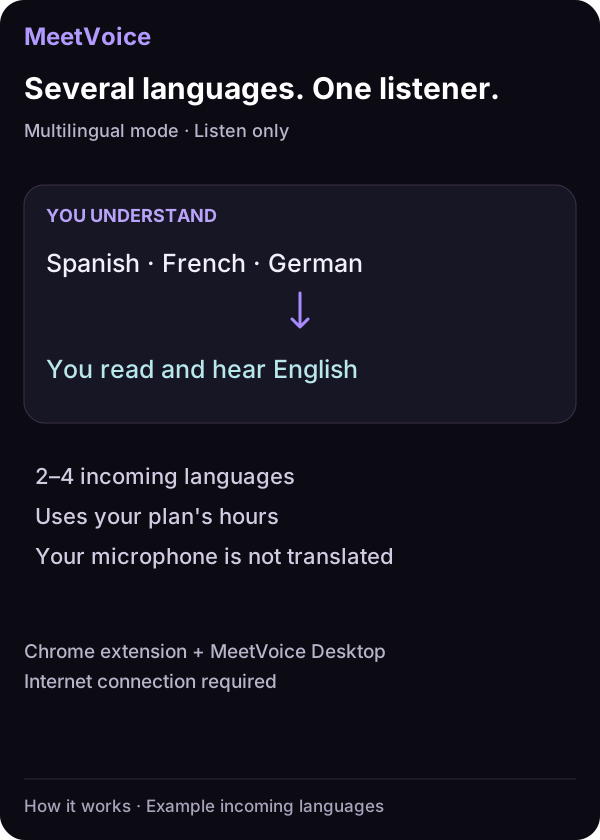
MeetVoice’s multilingual mode treats a meeting as a set of up to four expected languages, not a fixed pair. You declare which languages you expect to hear from other participants — say, Spanish, English, and German — and from then on the system detects each incoming speech segment automatically. Each segment from other participants is translated into your language for subtitles, voiceover, and the transcript.
Multilingual mode does not translate your own microphone into multiple outgoing languages. If the main goal is for another participant to receive your speech translated, use the regular language-pair mode for that call.
In practice, this means subtitles appear in your language regardless of which participant is speaking and which expected language they use. Voiceover plays in your language, and the transcript keeps the original language tag and translated text for each segment.
Turning it on
Open the MeetVoice extension panel. In the language selector, toggle multilingual mode and pick 2–4 expected incoming languages. Multilingual mode runs on the same included speech recognition as language-pair mode and uses your plan’s hours — there is no key to add. Then start translation from the extension. The hotkey for start and stop still works, the transcript still records, and the active-language indicator on the call shows which language the system is currently transcribing — useful for quickly confirming detection.
Which mode to use when
Multilingual mode adds capability but does not replace bidirectional language-pair mode. Use multilingual mode when you mainly need to understand incoming speech from several participants who may speak different languages: international standups, customer calls with distributed teams, or panel discussions.
Use regular language-pair mode when your own microphone also needs to be translated for another participant. Pair mode remains the right choice for one-on-one calls or meetings where two languages are guaranteed and both sides need translated output.
Ready to try it?
MeetVoice supports multilingual incoming translation in the ten languages that support switching mid-call — English, German, Russian, Spanish, Portuguese, French, Italian, Japanese, Dutch and Hindi — in any combination of 2–4 expected languages. Try it free for 30 minutes on your next cross-language call. Download MeetVoice at meetvoice.app. For step-by-step installation see our quick start guide.
Desktop app + Chrome extension for Google Meet
Multilingual meetings on Google Meet
in real time
30-min trial • No credit card • Audio not stored • Full control
Related guides
Keep both languages of a Google Meet call, side by side
Keep the spoken line and its translation side by side after a Google Meet call, then export both languages as PDF, SRT or plain text.
Translate a Google Meet call into a transcript your team can read
Translate a Google Meet call as it happens and export a timestamped record as PDF, SRT or plain text. Any supported language pair, nothing joins the call.
Read also
Google Meet Live Translation: How to Translate Calls
Translate Google Meet calls live: subtitles in your language and, if you want, your voice translated for the other side. 32 languages, 30-min free trial.
Set Up MeetVoice in 2 Minutes: Quick Start Guide
A step-by-step guide to installing and setting up the MeetVoice extension for real-time translation on Google Meet, ready in about two minutes.
Language App for Remote Teams: Live Call Translation
A language app for remote teams: live subtitles and voice translation in Google Meet let every teammate speak their own language on calls. Here is how it works.